UI Overview
A visual guide to every part of the Sparge interface. Start here to understand the layout before diving into individual features.
The Full Interface
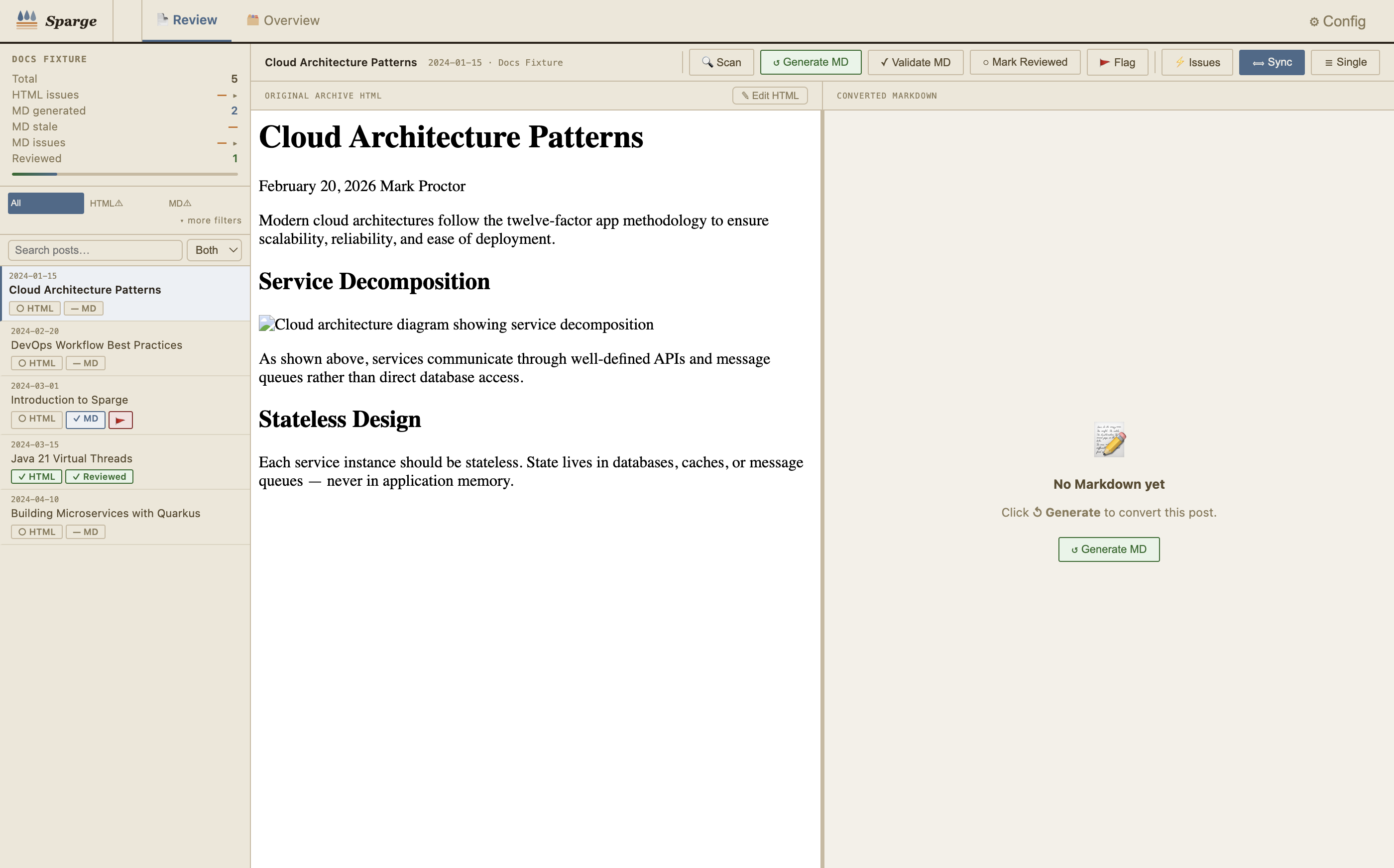 The Sparge application with a post selected. HTML source on the left, generated Markdown on the right.
The interface has four main regions:
| Region | Location | Purpose |
|---|---|---|
| Sidebar | Left column | Post list, statistics, filters, and bulk operations |
| Action bar | Top strip | Pipeline stage buttons and editor controls for the selected post |
| HTML pane | Left editor | Enriched HTML source with syntax highlighting and issue highlights |
| Markdown pane | Right editor | Generated Markdown with validation indicators |
The Sidebar
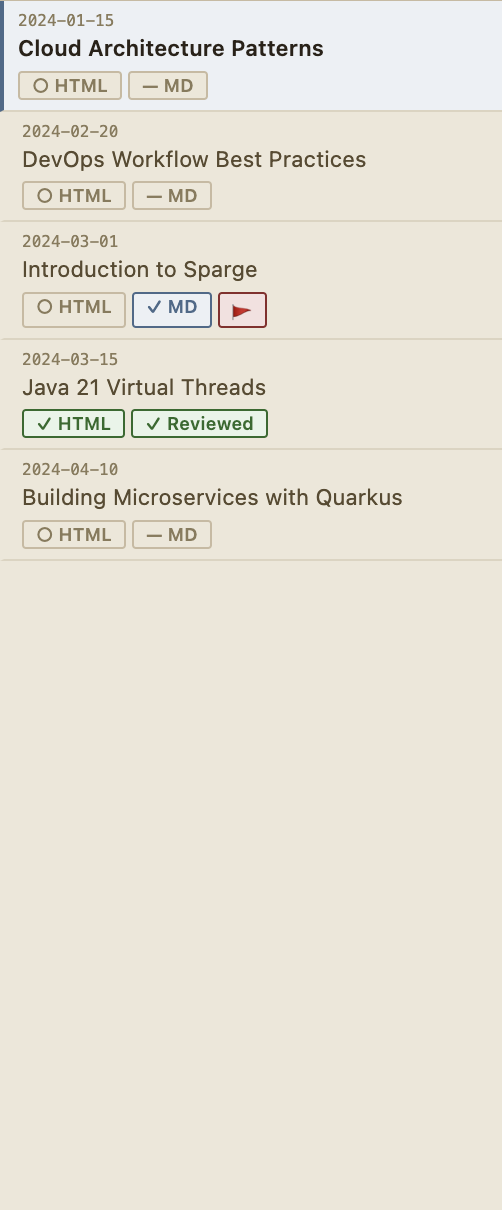 The sidebar: statistics at top, filter controls in the middle, post list below.
The sidebar is divided into three stacked sections:
Statistics panel
Shows per-project counts at a glance. Click the HTML issues or MD issues rows to expand a breakdown by issue type.
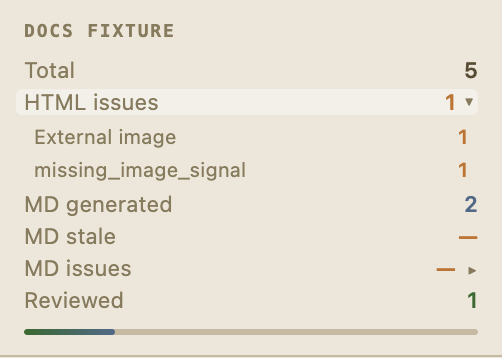 Expanding the HTML issues row shows a count for each issue type — click any type to filter the post list.
Filter zone
Controls what posts appear in the list.
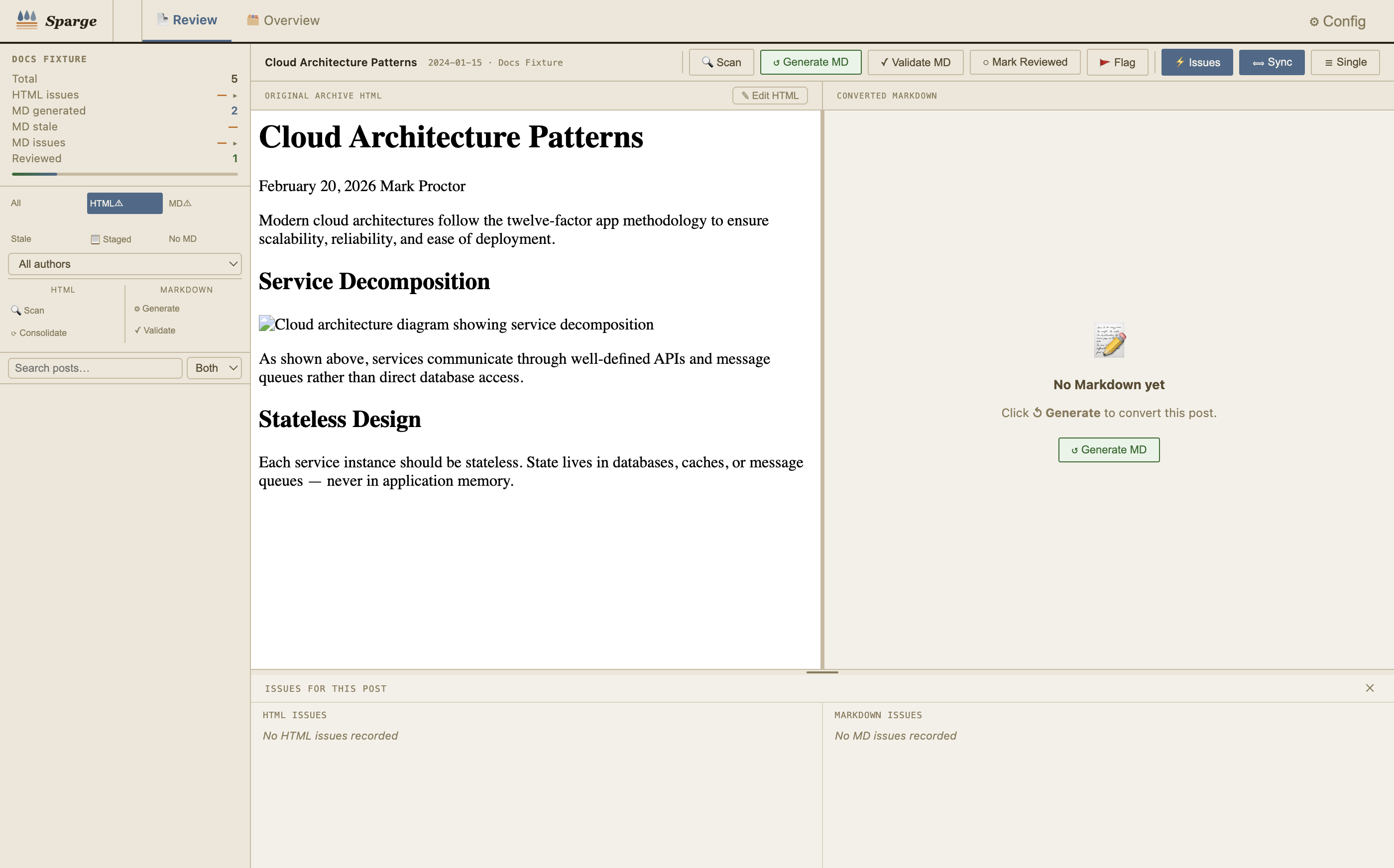
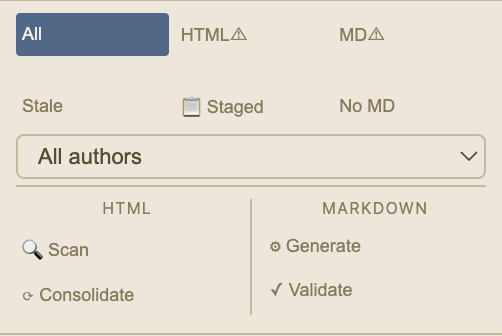
 Filter buttons: All posts, HTML issues, MD issues, and more — plus bulk operation buttons below.
Quick filters — always visible:
- All — show every post
- HTML⚠ — only posts with outstanding HTML issues
- MD⚠ — only posts with Markdown validation problems
Expanded filters — revealed on hover:
- Stale — posts whose Markdown is older than the source HTML
- 📋 Staged — posts with a pending staged draft
- No MD — posts that haven’t had Markdown generated yet
Scope search:
 Search narrows the post list in real time. Switch scope between Title, Body, and Both.
 The scope selector next to the search bar controls whether search matches post titles, body text, or both.
Bulk operations — appear below the filter buttons:
| Button | Scope | What it does |
|---|---|---|
| 🔍 Scan | HTML | Scans all posts in current filter scope |
| ⟳ Consolidate | HTML | De-duplicates shared assets across all posts |
| ⚙ Generate | Markdown | Generates Markdown for all posts in scope |
| ✓ Validate | Markdown | Validates Markdown for all posts in scope that have MD |
Tip: Filter first, then bulk-operate. Applying HTML⚠ before clicking 🔍 Scan limits the scan to only posts that need attention.
Post list
Each post row shows its title, date, and status badges.
Each row shows:
- Date — publication date
- Title — post title (truncated if long)
- Badges — pipeline status at a glance (HTML issues, MD state, flagged)
Click any row to open the post in the editor panes.
The Action Bar
 Left side: pipeline stage buttons. Right side: editor view controls.
The action bar runs across the top of the editing area. It has two groups:
Pipeline buttons (left side) — advance the selected post through the pipeline:
| Button | When visible | What it does |
|---|---|---|
| 🔍 Scan | Always | Enriches HTML and checks for issues |
| ↺ Generate MD | Always | Converts enriched HTML to Markdown |
| 📋 Review Staged | When staged version exists | Opens a diff between staged and current Markdown |
| ✓ Validate MD | Always | Runs Markdown validation checks |
| ✓ Reviewed | Always | Marks/unmarks the post as reviewed |
| 🚩 Flag | Always | Flags/unflags the post for follow-up |
Editor controls (right side) — change how the editor displays:
| Button | Default | What it does |
|---|---|---|
| ⟺ Sync | Active | Toggles scroll synchronisation between HTML and MD panes |
| ☰ Single | Off | Switches between split-pane and single-pane view |
| ≡ HTML→MD | Hidden | Switches between HTML→MD and MD→Refined view (refinement mode only) |
| ✨ Accept Refined | Hidden | Applies refinements and writes to disk (refinement mode only) |
The HTML Pane
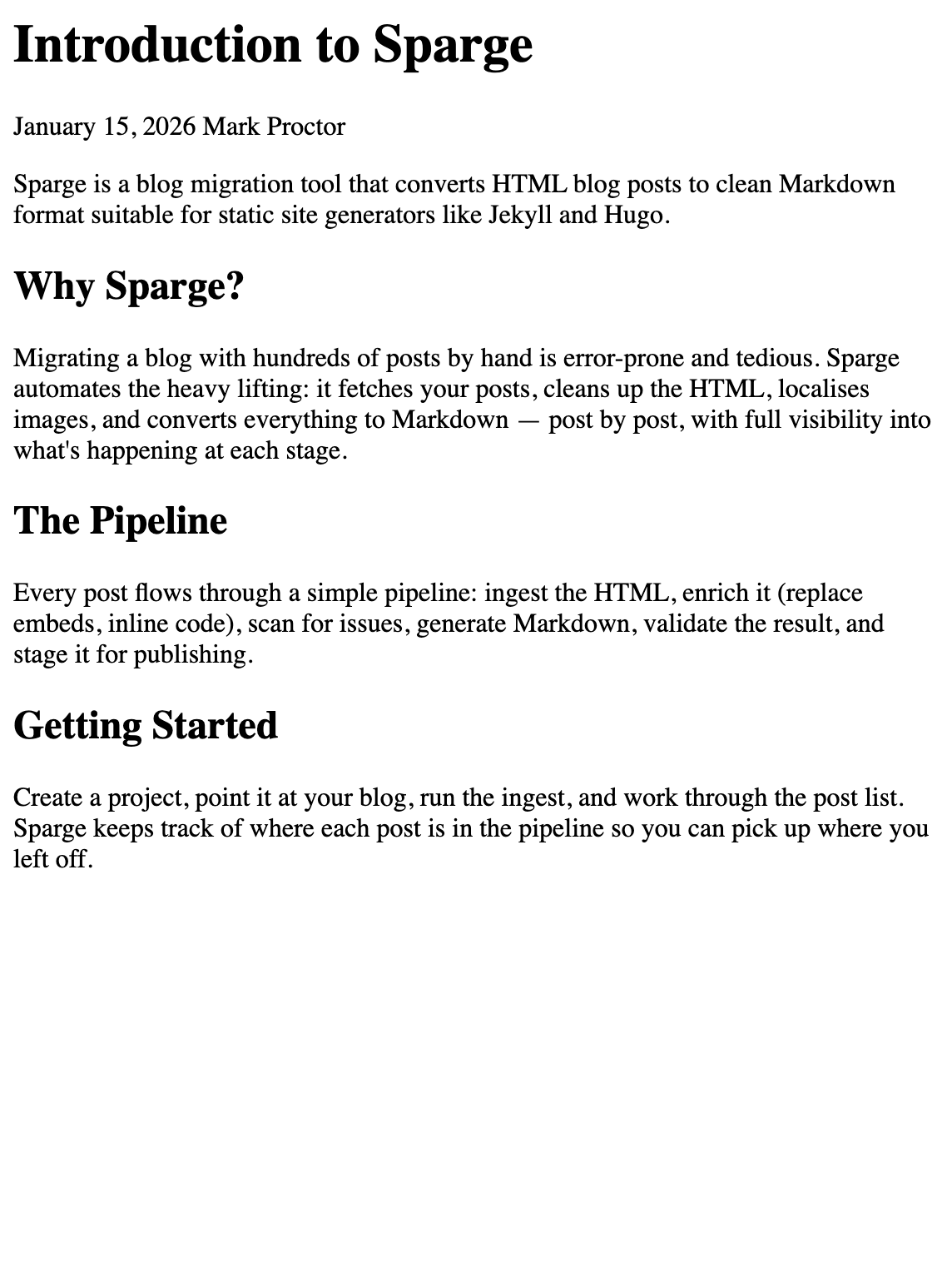 The HTML pane: enriched HTML source with CodeMirror syntax highlighting.
The HTML pane shows the enriched copy of the post — after YouTube embeds have been replaced, Gist scripts inlined, and code classes normalised. This is the content that will be converted to Markdown.
The ✎ Edit HTML button in the pane header switches the editor to edit mode, allowing direct changes to the enriched HTML. Changes are saved with Save and discarded with Revert.
Issue highlights
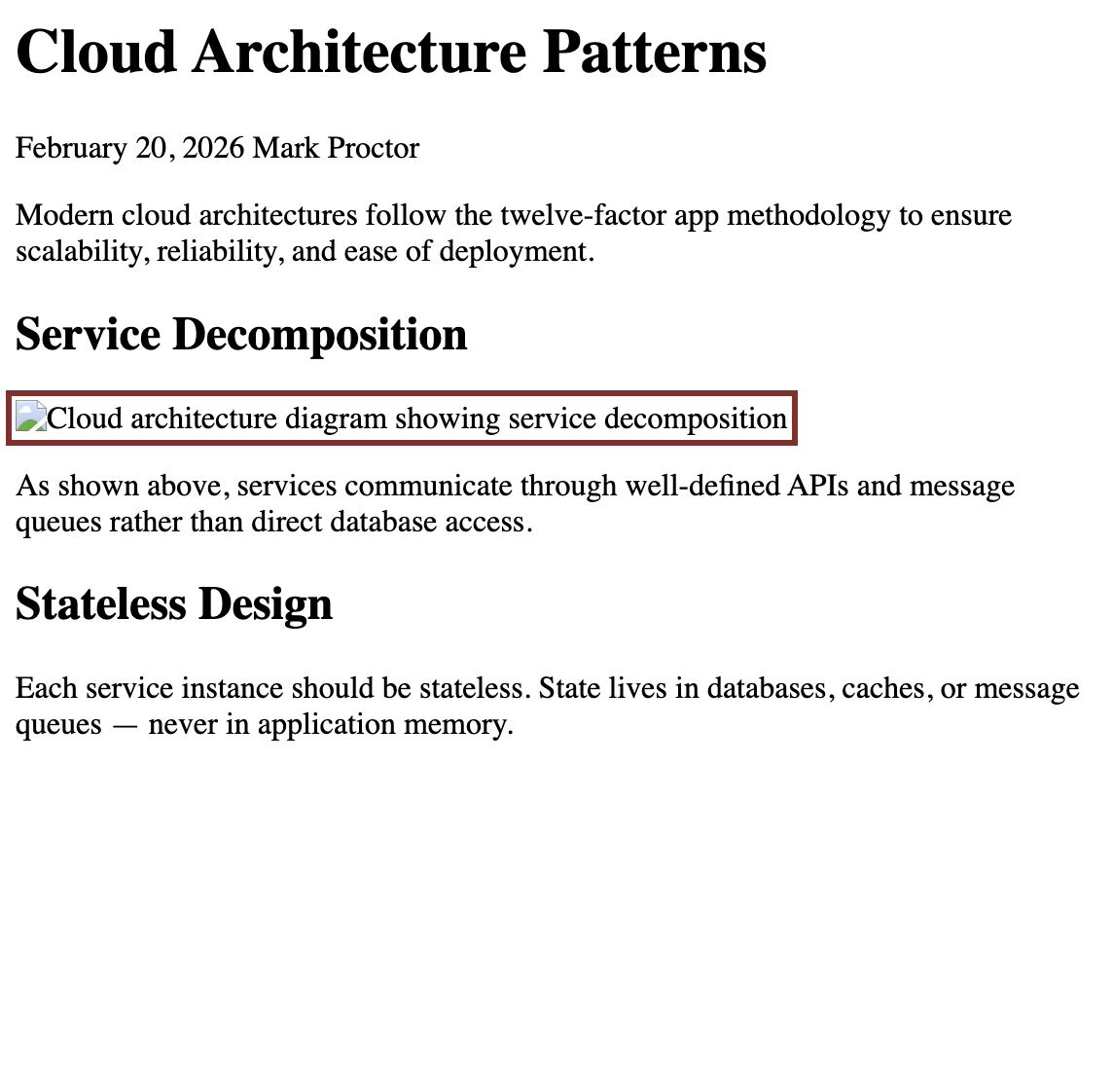 Clicking an issue in the Issues panel highlights the relevant element in the HTML editor.
When an issue is selected in the Issues panel, the corresponding element is highlighted in yellow in the HTML editor and scrolled into view.
The Markdown Pane
 The Markdown pane: generated Markdown with syntax highlighting.
The Markdown pane shows the generated Markdown. The ✎ Edit MD button in the pane header switches to edit mode. After editing, use Stage to save a draft for review.
Validation results
 Validation issues appear as badges in the Markdown pane header when checks fail.
Validation runs automatically after Markdown generation and after accepting staged edits. Issues appear as badges in the pane header.
Staged state
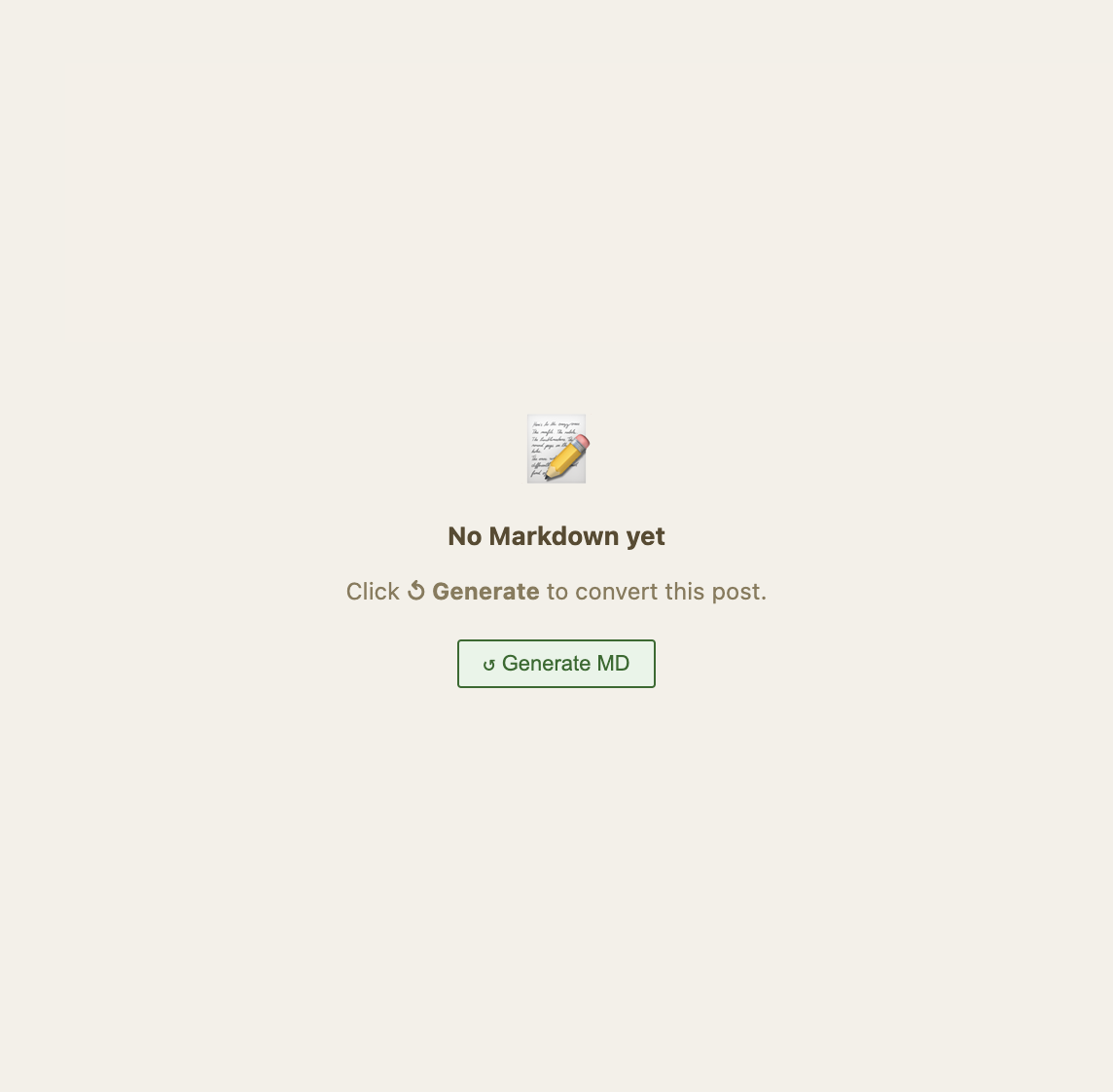 The Markdown pane shows a warning when a staged version exists — use Review Staged to examine the diff.
When a staged (pending) version of the Markdown exists, the pane shows a warning. Use the 📋 Review Staged button in the action bar to see the diff.
The Issues Panel
 The Issues panel lists every HTML issue found during scanning.
The Issues panel (⚡ Issues button in the action bar) lists every HTML issue found during scanning. Each issue shows:
- Type — the issue category (e.g.
external_image,tracking_pixel) - Severity — Error (red) or Warning (amber)
- Detail — a description of what was found and where
 Clicking an issue in the panel highlights it in the HTML editor.
Click an issue to jump to it in the HTML editor. Some issues have a Dismiss button — use this to mark an issue as acknowledged if you’ve decided it’s acceptable.
 Hover over an issue row to reveal the Dismiss button.
Staging and Publishing
 The staged diff view shows what changed — Accept to publish, Reject to discard.
When you’ve edited the Markdown and staged your changes, use 📋 Review Staged to open the diff view. From there:
- Accept — promotes the staged draft to the published Markdown
- Reject — discards the staged draft
See Staging and Publishing for the full workflow.
Theme and Appearance
 The theme toggle switches between light and dark mode. Your preference is remembered between sessions.
The theme toggle in the top bar switches between light and dark mode. Your choice is saved across sessions.
The divider between the HTML and Markdown panes is draggable — grab and drag it left or right to give more space to whichever side you’re working on.
 Drag the divider to resize the HTML and Markdown panes.