Sparge User Guide
Sparge is a blog migration tool for technical bloggers. It takes your existing HTML blog posts — from a live blog URL or a local directory — and converts them to clean Markdown ready for Jekyll, Hugo, or any static site generator.
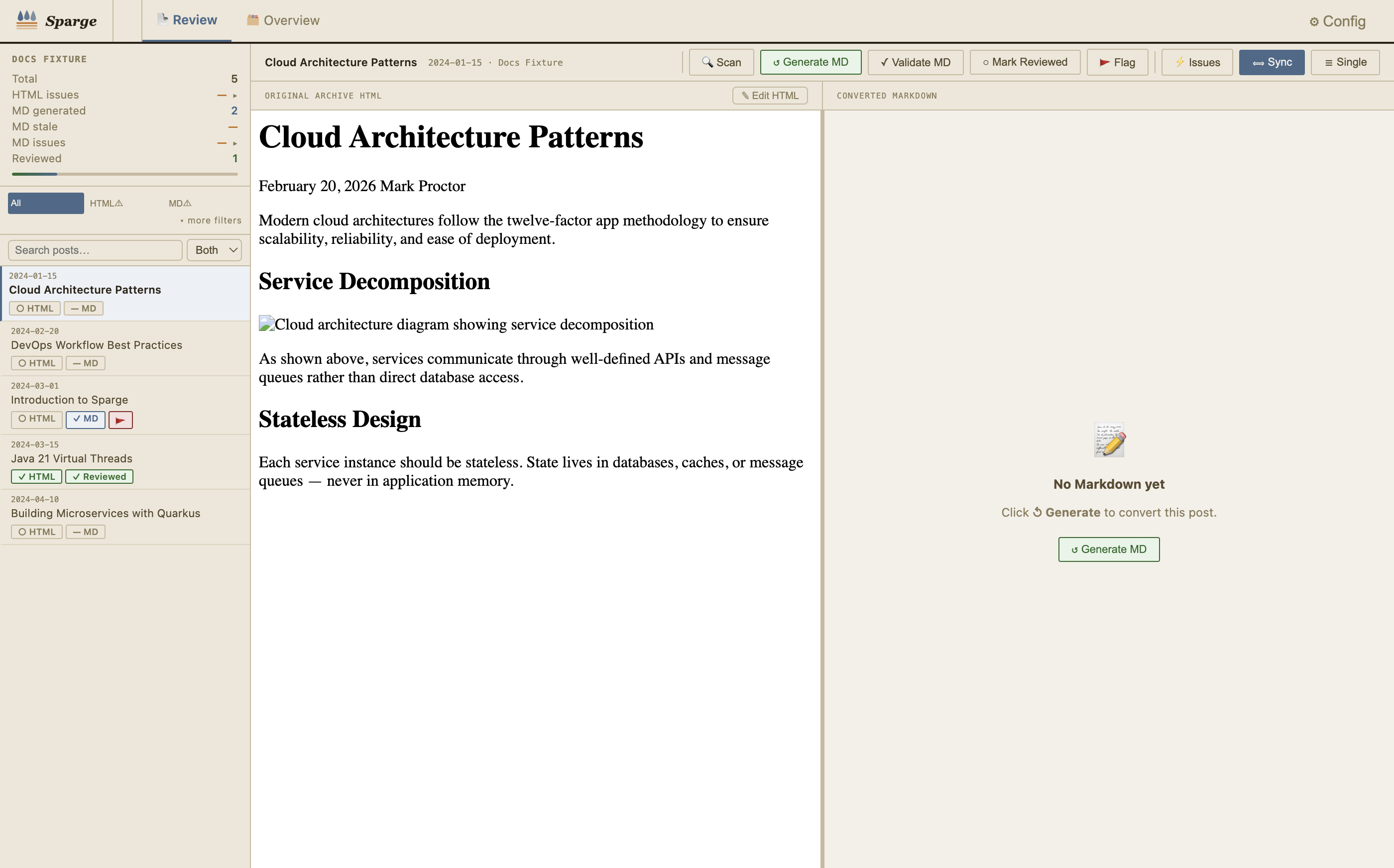 The main view: post list on the left, HTML and Markdown editors on the right.
What Sparge does
Every post flows through a pipeline: Ingest → Enrich → Scan → Generate MD → Validate → Stage → Publish. Sparge tracks where each post is in this pipeline and flags anything that needs your attention — broken images, encoding issues, unconverted code blocks — before you publish.
Note: Sparge is a desktop application for macOS, Windows, and Linux. No command line required after installation.
Contents
| Page | What it covers |
|---|---|
| UI Overview | Visual guide to every part of the interface — start here |
| Features & Capabilities | Complete list of everything Sparge can do |
| Installation | Download, install, and first launch |
| Creating Your First Project | Set up a project and understand path configuration |
| Ingesting Posts | Import posts from a live blog or local files |
| Understanding the Pipeline | How posts move from HTML to published Markdown |
| Working With Posts | The post list, split-pane editor, and pipeline actions |
| The HTML Editor | Edit and inspect HTML source |
| The Markdown Editor | Review, edit, and stage generated Markdown |
| The Issues Panel | Understand and resolve HTML and Markdown issues |
| Filtering & Search | Find posts by content, issue type, and review state |
| Staging & Publishing | The staging workflow and publishing to your blog |
| Checks, Validations & Autocorrects | Reference: everything Sparge detects and fixes |