Filtering & Search
With hundreds of posts in a project, filtering and search let you focus on exactly the posts you need to work on.
Search
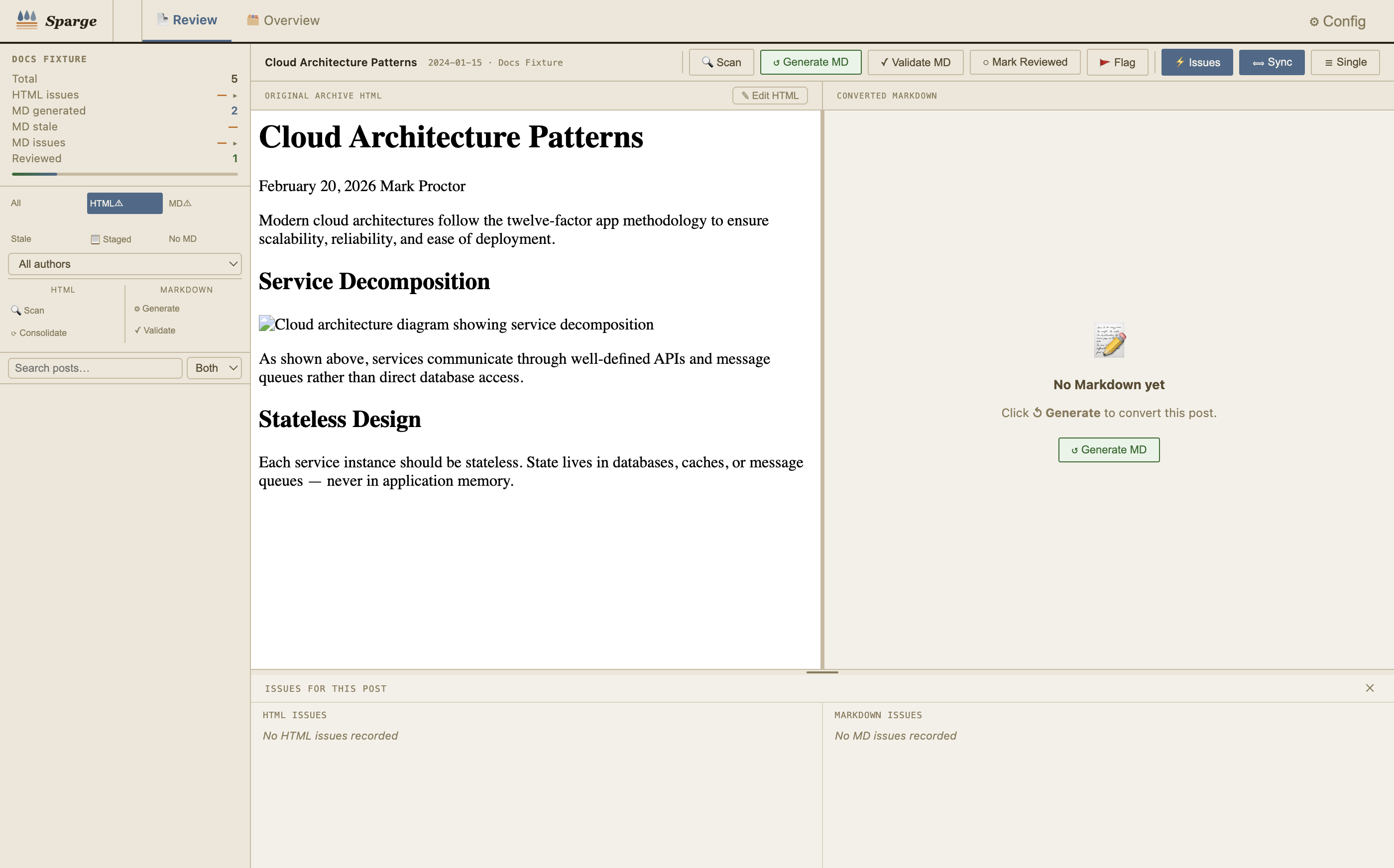 The search bar filters the post list in real time.
Type in the search bar to filter posts. By default, Sparge searches post titles. Use the scope selector to change what’s searched:
| Scope | Searches |
|---|---|
| Title | Post title only (fast) |
| Body | Full post body text (server-side search across all posts) |
| Both | Title and body |
 Switch between Title, Body, and Both search modes.
Note: Body search performs a server-side text search across all your HTML files. It’s thorough but slightly slower than title search on large archives.
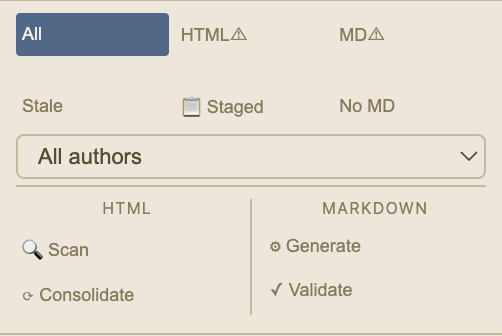
Issue-type filters
 Click an issue-type button to show only posts with that issue.
The filter bar contains a button for each HTML issue type. Click one to show only posts that have that specific issue. This is useful for batch-working — for example, fixing all external_image issues across your archive at once. Click the button again to deselect the filter.
Author and reviewed filters
For multi-author blogs, the Author dropdown filters posts by author. The Reviewed toggle shows only posts you’ve marked as reviewed (or only unreviewed posts).
Combining filters
All filters work together. A search query combined with an issue-type filter and the Reviewed toggle shows only matching unreviewed posts with that specific issue — useful for tracking remaining work.
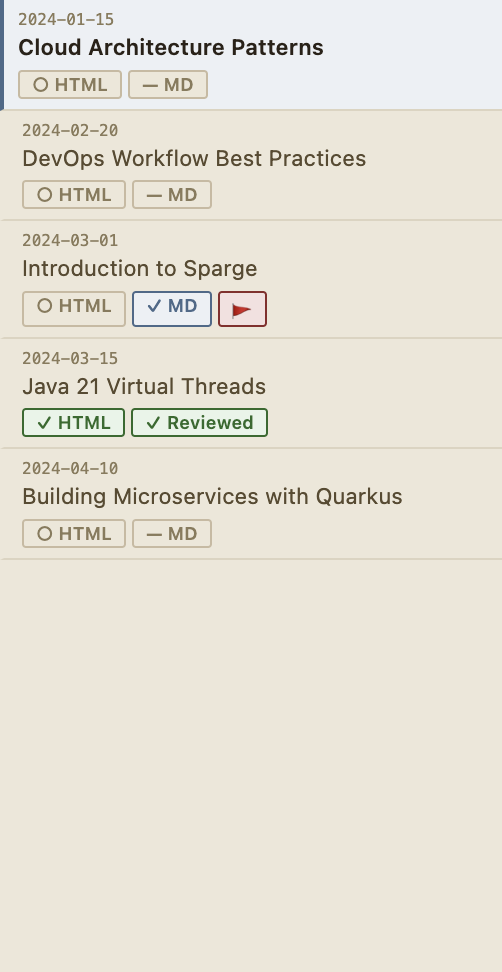 Combining filters narrows the list to exactly what you need to work on.
Clear all filters by clearing the search bar and clicking any active filter buttons again.