Installation
Sparge is a desktop application available for macOS, Windows, and Linux.
Download
Download the latest version from the Sparge releases page.
| Platform | File to download |
|---|---|
| macOS (Apple Silicon) | Sparge-x.x.x-arm64.dmg |
| macOS (Intel) | Sparge-x.x.x-x64.dmg |
| Windows | Sparge-Setup-x.x.x.exe |
| Linux | Sparge-x.x.x.AppImage |
macOS
Open the downloaded .dmg file. Drag Sparge to your Applications folder.
Note: On first launch, macOS may show a security warning because Sparge is not yet signed with an Apple Developer ID. To open it: right-click the app → Open → Open in the confirmation dialog.
Windows
Run the downloaded .exe installer and follow the prompts. Sparge installs to your user profile — no administrator access required.
Linux
Make the .AppImage file executable and run it:
chmod +x Sparge-x.x.x.AppImage
./Sparge-x.x.x.AppImage
First launch
When Sparge opens for the first time, you’ll see the Projects screen. No projects have been created yet.
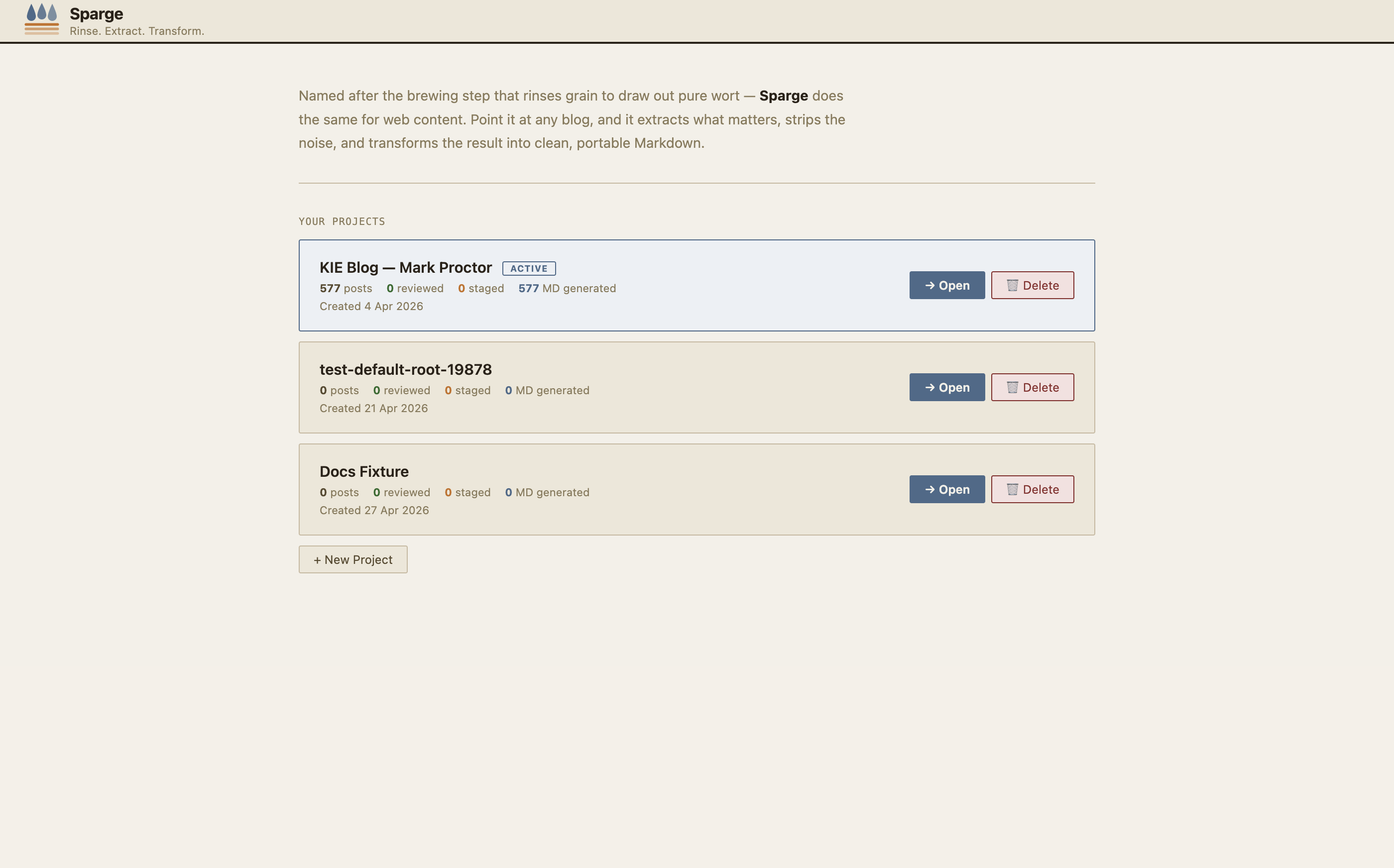 The Projects screen on first launch. Click New Project to get started.
The next step is creating your first project.